
Version 1
Approved 2026-09-24
No change notes supplied.
GAUGE.SYamaha Style
Publish a designLoading the gauge simulator…
Pick a preset to fill the options, then make it your own. Each thumbnail shows the actual gauge.
A demo of the design's value ranges. Adjusting a value pauses the sweep and pins that value; Play resumes the others.
Try the author's options, then take your setup into the editor. The published pack stays unchanged.
Using the author's settings.
Sign in in a new tab, then return here to open your chosen setup.
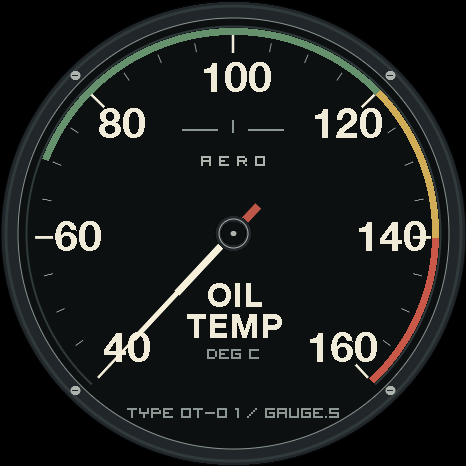
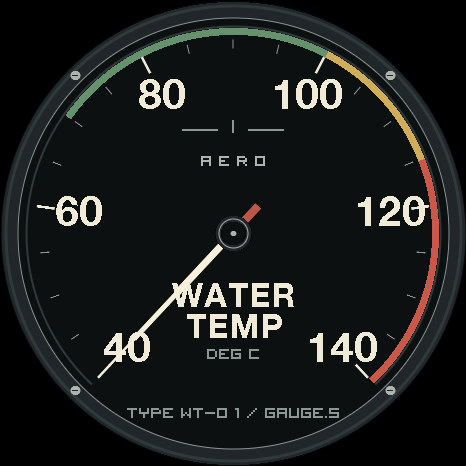
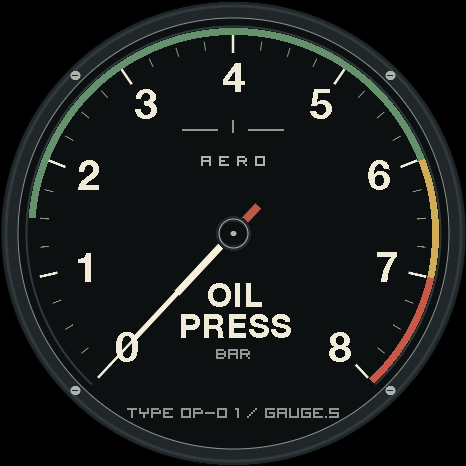
A Yamaha-inspired instrument layout with bundled artwork and runtime fonts.
Sign in to rate this design.
0 reviews
New takes on this design, with credit to the source. Linked forks stay free.
Be the first to share your own version.
Render check passed. These are author-declared references, not verified vehicle compatibility. Units and data sources depend on your device's bindings; live demo ranges are labeled separately.
Approved 2026-09-24
No change notes supplied.
Related by independent tags or the same creator.
Download the .ogp, then open your gauge's dashboard. In Gauges, choose Add → Import from file. After import, choose Active on the new gauge.
Follow the installation guide →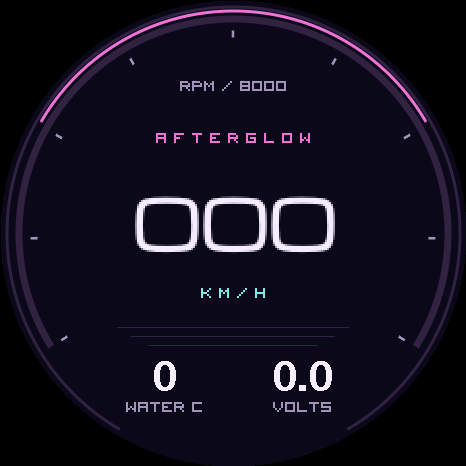
Comments
0 comments
Sign in to comment.
No comments yet.